
Scheduling, calendar and campaigns
How to use the calendar
See every scheduled and published post by day, week or month, filter by status, platform or campaign, and find the posts that need your approval.
How-toWho it's for:OwnerAdminEditorViewer
Checked on 24 October 2026Open in Kredia
The Scheduling page is your agency's content calendar. It shows every post for every client, with its status and approval state, and it updates live: when a post publishes, fails or gets approved, you see it without refreshing.
Before you start
- Anyone on the team can view the calendar. Creating, editing, publishing and deleting posts needs the Editor role or above.
- Posts appear once they're created. To add one, click New Post; see How to create and schedule a post.
Find your posts
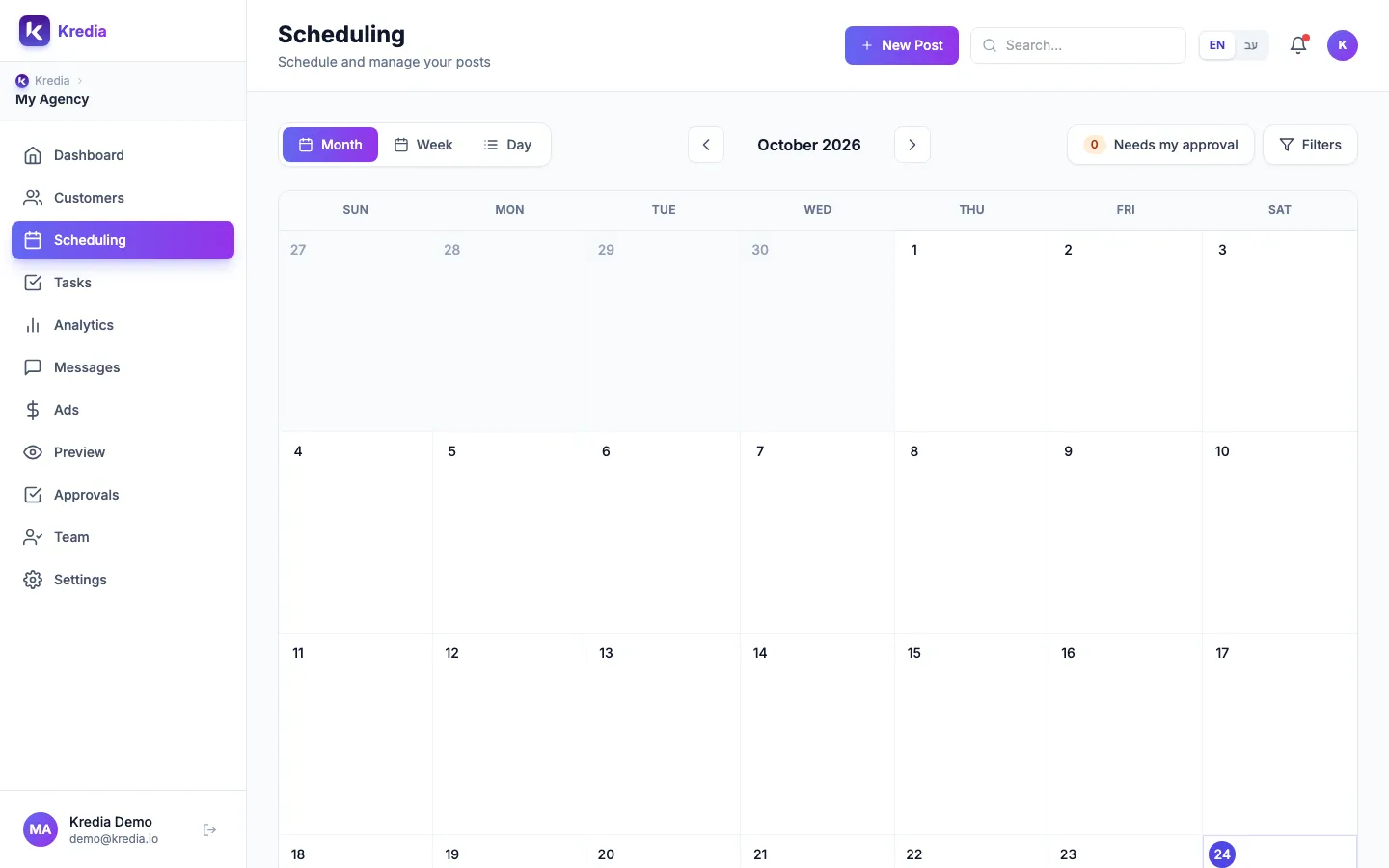
- Open Scheduling in the sidebar. The calendar opens on today, in the Day view.
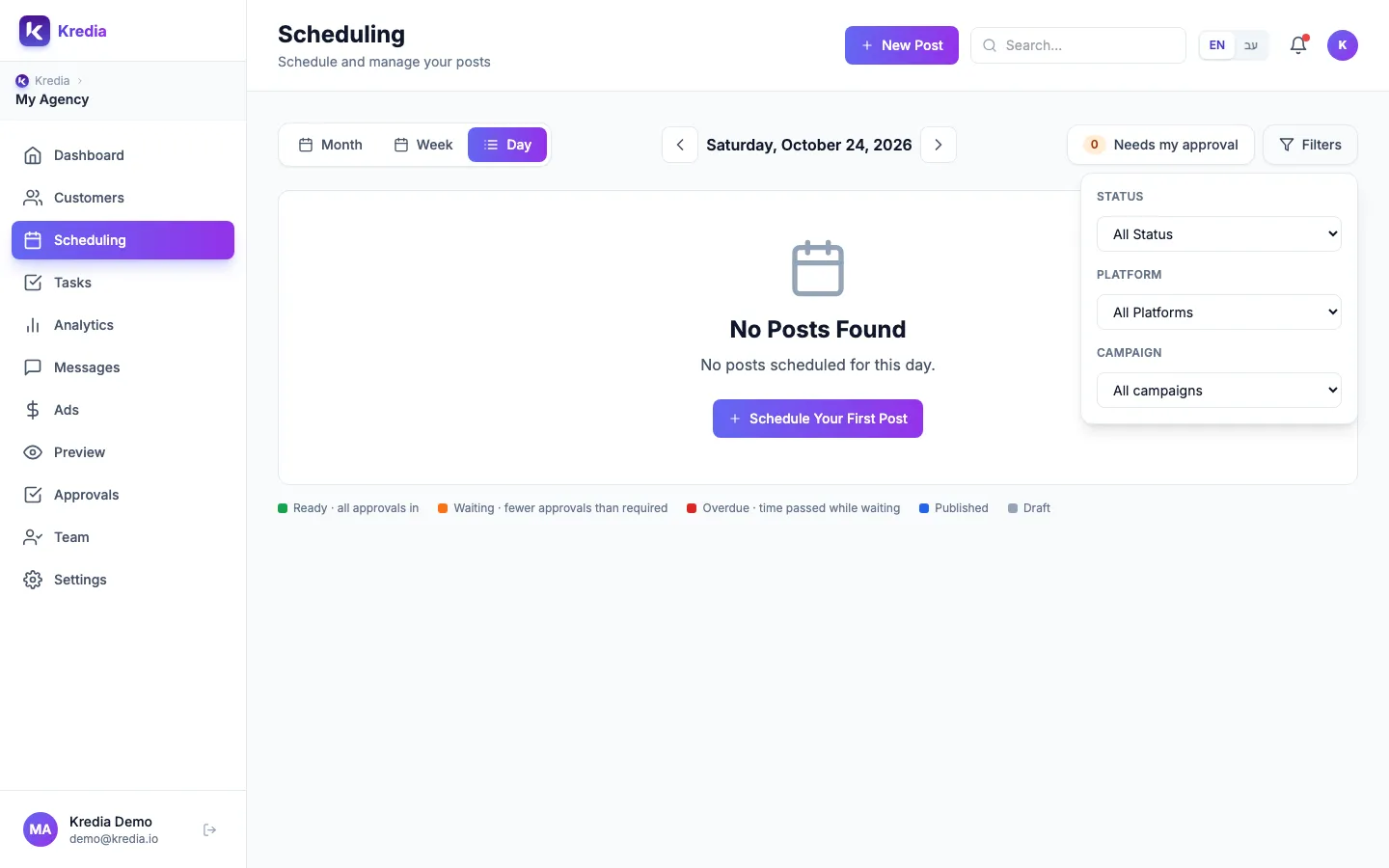
- Switch between Month, Week and Day at the top left.
- Use the arrows next to the date to move back and forward.
- Click Needs my approval to show only posts that are waiting for you. The number shows how many there are.
- Click Filters to narrow the calendar by Status (scheduled, published or failed), Platform or Campaign. The campaign filter lists your content campaigns.
- Click a post in the week or month view, or the eye icon in the day view, to open its details: status, approvers, versions, history and internal comments.
Act on a post
In the Day view each post has icons on its right:
- Eye opens the post details.
- Repost makes a copy of the post at a new time. The copy goes through approvals again.
- Post Now (paper plane) publishes a scheduled or failed post right away. See How to publish a post now or retry a failed post.
- Edit (pencil) changes the caption, media or time of a scheduled post. Published posts can't be edited.
- Delete (bin) removes a post that isn't published yet.
The colored stripe on each post matches the legend under the calendar. See Post statuses explained.
What can go wrong
- "No Posts Found". The Day view shows one day only. Switch to Week or Month, or clear your filters.
- A platform is missing from the platform filter. The filter lists Instagram, Facebook, TikTok and LinkedIn. To find posts for other platforms, use the Week or Month view without a platform filter.
- Deleting doesn't remove a published post. Delete is available only before publishing. Anything already live stays on the platform.
- Editing an approved post can reset its approvals, depending on the client's approval rules. The post then waits for approval again.
- Some calendar labels are in English even when Kredia is set to Hebrew.
See also
Was this article helpful?