
Creating content
How to create and schedule a post
Write one post for one or more of a client's platforms, add media, and schedule it, publish it now, or send it for approval.
The composer is where you write a post, pick where it goes and decide when it publishes. You can send the same post to several of a client's platforms at once: Kredia creates one post per platform, so each one can succeed, fail or be edited on its own.
Before you start
- The client has at least one connected account. Platforms the client hasn't connected are greyed out in the composer. See How to connect, reconnect or disconnect a social account.
- You're an Editor, Admin or Owner. Viewers can't create posts.
- You have your media ready. Instagram, TikTok and YouTube need a photo or video; see How to add photos and videos to a post.
Create the post
- Open Scheduling in the sidebar and click New Post. (You can also use Schedule New Post in the dashboard's quick actions.) The Schedule Post window opens.
- Under Platforms, pick one or more platforms. Kredia will schedule a separate post to each.
- Under Customer, choose the client. Platforms that client hasn't connected turn grey.
- Choose the Post type: Post, Reel or Story. Types a platform doesn't support are switched off for it.
- Write the caption under Content. Type
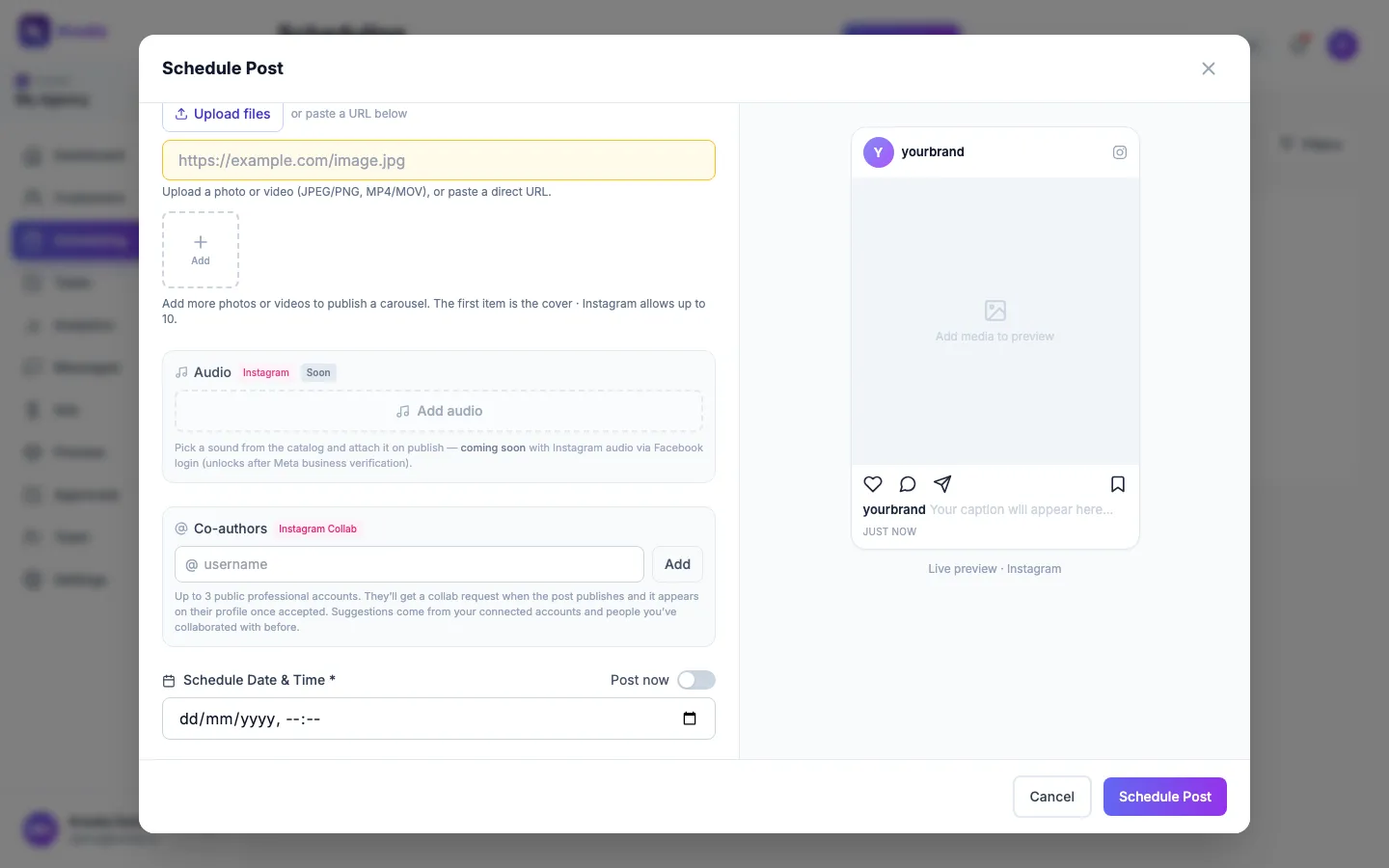
#hashtagsand@mentionsstraight into the text. Typing@suggests accounts your agency has connected; other handles you type in full. - Add a photo or video under Photo or video: click Upload files, or paste a direct link to a public file.
- Fill in any platform-specific fields that appear, for example the Facebook Page (when the client has several Pages), the YouTube title and visibility, the TikTok privacy level or the Pinterest board.
- Under Schedule Date & Time, pick a date and time in the future, or switch on Post now.
- Check the live preview on the right, then click Schedule Post (or Post Now). If the client's approval rules apply to you, the button reads Submit for approval instead.
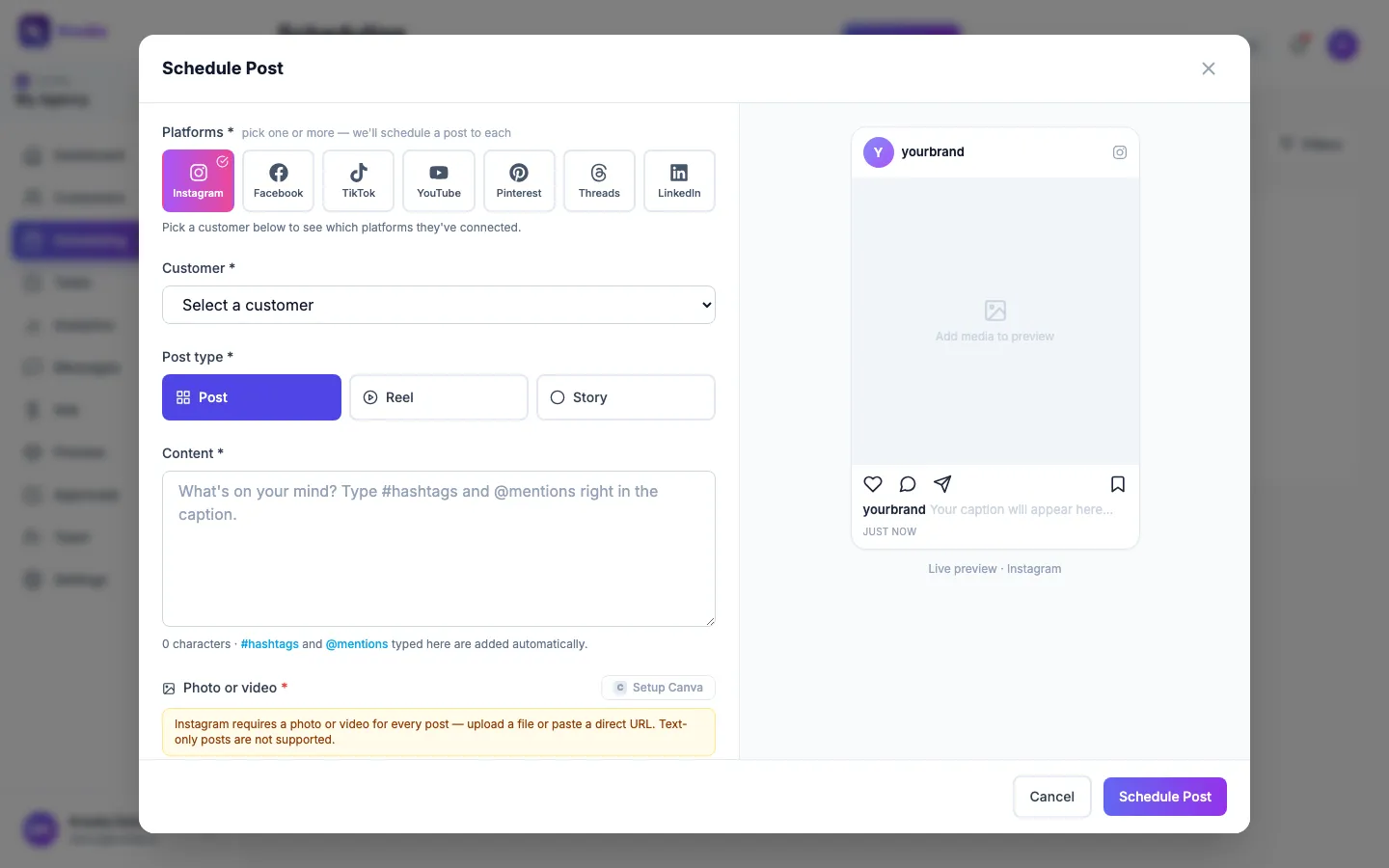
Kredia checks the post before saving it. If something blocks publishing, you see it right away, and warnings (for example, a connection that expires soon) ask you to confirm before you continue.
When the post needs approval
If the client's approval rules require approval for your posts, the composer tells you how many approvals are needed. Your post waits in Approvals until enough approvers sign off.
- Post now is hidden when the client doesn't let authors publish as soon as a post is approved.
- When the client allows it, you can choose under Publish timing between At the scheduled time and As soon as approved.
By default, each client needs one approval from an Admin or the Owner. Posts written by the Owner or an Admin go straight through; posts written by Editors wait. See How approvals work.
What can go wrong
- "Scheduled time must be in the future". Pick a later time, or switch on Post now.
- Some platforms failed, others were scheduled. A Scheduling results list shows each platform. The failed ones stay selected, so fix the problem and submit again to retry just those.
- The platform you want is greyed out. The client hasn't connected it, or the connection expired. Connect or reconnect it first.
- Instagram asks for media. Instagram doesn't allow text-only posts. Add a photo or video.
- Several images on Facebook or Threads. Today only the first image of a multi-image post is published on Facebook and Threads. Instagram (up to 10) and LinkedIn (up to 20) publish the full carousel.
- The song isn't on the published Reel. The Audio section is marked Soon. Add music in the Instagram app after publishing.
- The composer is in English. Most of the composer hasn't been translated to Hebrew yet.
To change a post later, open Scheduling and use the edit icon on a scheduled post. Published posts can't be edited.
See also
Was this article helpful?