
Scheduling, calendar and campaigns
How to preview a client's feeds
See each client's real feed next to their scheduled posts, platform by platform, and manage Instagram posts from the preview.
How-toWho it's for:OwnerAdminEditorViewerInstagramFacebookTikTokYouTubeLinkedInPinterestThreadsGoogle Business Profile
Checked on 24 October 2026Open in Kredia
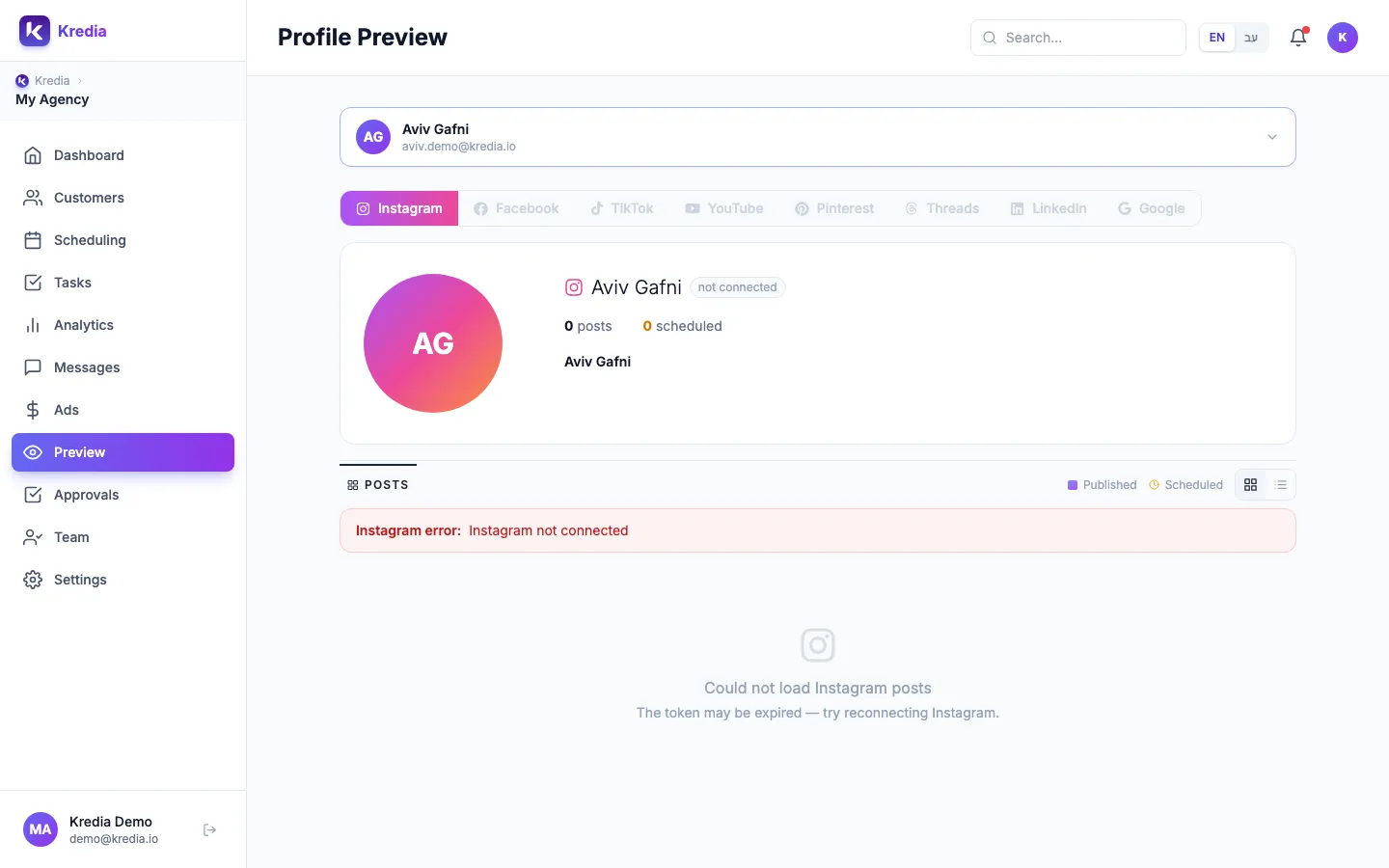
The Preview page shows a client's profile the way followers see it: the posts already published on each platform, plus the posts you've scheduled. Use it to check how the feed will look before posts go out.
Before you start
- The client has connected accounts. Platforms that aren't connected are greyed out. See How to connect, reconnect or disconnect a social account.
- Anyone on the team can view the preview. Editing, publishing and deleting need the Editor role or above.
Preview a client
- Open Preview in the sidebar.
- Pick the client from the list at the top.
- Choose a platform tab: Instagram, Facebook, TikTok, YouTube, Pinterest, Threads, LinkedIn or Google.
- Look at the grid: Published posts come from the platform, Scheduled posts come from Kredia. Switch between grid and list with the icons on the right.
- On the Instagram tab, open a post to read and reply to comments, set up an auto-reply, edit it, publish it now, delete it or archive it.
- On the Facebook tab, edit the Page bio and read comments on posts.
What can go wrong
- A tab is greyed out. The client hasn't connected that platform.
- "Could not load Instagram posts". The connection may have expired. Reconnect the account; see Account shows "Expired, reconnect".
- You can't edit a post on other tabs. Editing, publishing and deleting from the preview work on the Instagram tab only. For other platforms, use Scheduling. Facebook comments are read-only.
- Not every scheduled post shows. The preview lists up to 50 scheduled posts per platform. Scheduling shows them all.
- The Instagram bio can't be edited. Instagram doesn't allow apps to change the bio or profile picture.
See also
Was this article helpful?