
Approvals
How to approve a post or request changes
Review the posts waiting for you in Approvals, approve the current version, or send the author a note about what to change.
How-toWho it's for:OwnerAdminEditor
Checked on 24 October 2026Open in Kredia
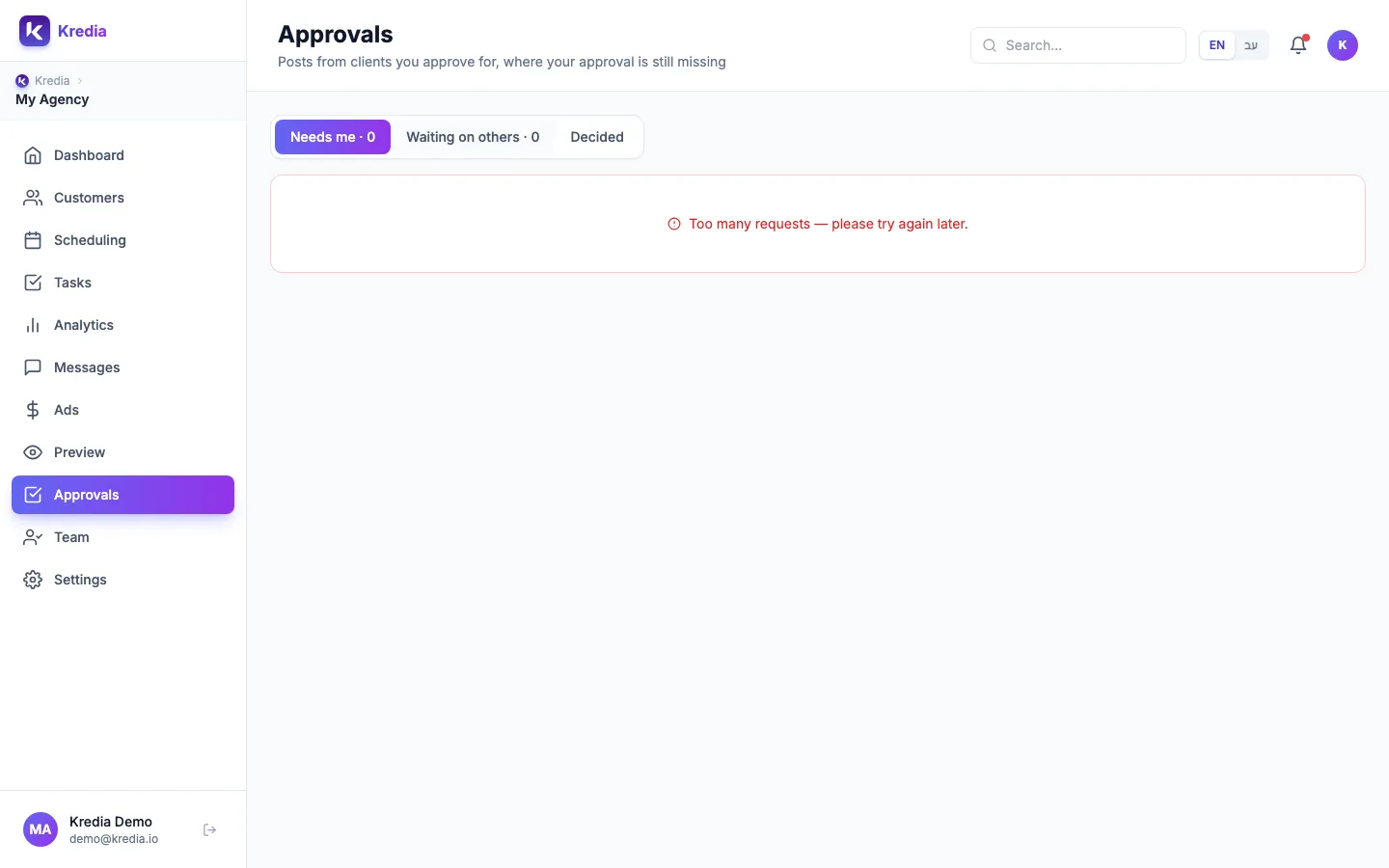
When a post needs your approval, it shows up in Approvals. You can approve it straight from the list, or open it to compare versions, read comments and request changes.
Before you start
- You're an approver for the client. Under the default rule any Admin or the Owner can approve. If the client has a named team, only its approvers can. See How approvals work.
- It isn't your own post. Authors can't approve their own posts.
Review and decide
- Open Approvals in the sidebar. The badge shows how many posts need you.
- Stay on the Needs me tab. Waiting on others lists posts that still need someone else, and Decided lists posts you've already approved or sent back.
- Read the caption, platform and scheduled time on each post. Click Open to see the full post, or Comments to read the team's internal comments.
- To approve, click Approve v followed by the version number (for example Approve v2).
- To send it back, click Request changes, write what should change, and click Send request. The author gets your note, and the post waits until it's edited.
Review in the post details
From Scheduling, click a post (or the eye icon in the Day view) to open Post details. There you can:
- See who has approved and who hasn't yet.
- Click ✓ Approve v with the version number, or Request changes….
- Open Versions to compare a version with an earlier one, or restore an older version. Restoring creates a new version, which needs approval again.
- Open History to see every step: created, edited, approved, published or failed.
- Add internal comments under Comments.
- If you're allowed to skip approval for this client, click Publish without approval. Your name is recorded in the history.
You can also approve on your phone: see How to approve posts on mobile.
What can go wrong
- "You can't approve your own post". Someone else on the client's team has to approve it.
- "The post changed, review v…". The author edited the post while you were looking. Review the new version and approve that.
- "You are not an approver for this client". You aren't on this client's approver list. An Owner or Admin can add you on the client's Team & approvals tab.
- "Approved after its scheduled time. The post is held…". Your approval came after the scheduled time, so the post didn't publish. Click Post now or reschedule it. See An approved post didn't publish.
- You weren't notified. Kredia shows approvals in the app only (sidebar badge and live updates). There are no approval emails or push notifications yet, so check Approvals regularly.
See also
Was this article helpful?